Setup Guide

How to Setup Your
Mapians eSIM

Takes 2 minutes

Quick setup

No app required

Native support

200+ countries

Global coverage

No roaming charges

Fixed price

Start eSIM Setup

Follow our simple guide to activate your eSIM in minutes
Scan QR to download app

Scan QR Code

Your eSIM activation key

Device Selection

Choose Your Device

Select your device type to see tailored setup instructions

iPhone

iOS 12.1 or later (iPhone XR/XS and newer)

Fully Supported

Android

Android 10 or later (select devices)

Coming Soon
Step by Step

eSIM Setup Guide

Follow these steps to get connected in minutes

Your Progress

Checklist 0/5

Need Help?

Our support team is available 24/7

1

Before You Begin - eSIM Activation

Stable WiFi Connection

You are on a stable WiFi connection

Airplane Mode OFF

Airplane mode is OFF for your device

QR Code Ready

Send QR code to another device near you

Second Device Ready

Laptop, tablet, or friend's phone to scan

Keep Screen Awake

Screen should not go dark during process

Checklist Progress 0/5
2

Activating Your Mapians eSIM

πŸ“± Scan QR Code Activate eSIM Continue

Scan QR code

From device where you want to use eSIM

Activate eSIM screen

Click Continue and follow process

Usage Period Starts Immediately

Once you activate your eSIM, the usage period will start from that moment.

Important: Activation Time

Your eSIM will take 1–2 minutes to activate. Please ensure your screen does not go dark during this process.

3

Configuring iOS Default Settings

When you see "Cellular Setup Complete", click Continue

Default Line

Select Primary

Click Continue

iMessage & FaceTime

Select Primary

THIS IS CRITICAL - Click Continue

Cellular/Mobile Data

Select Primary
Allow Data Switching ON

Then click Continue

Note Your eSIM Label

iOS will assign a label to your new eSIM - likely Personal, Travel, Secondary, Business, or Cellular Data. You'll need this in the next step.

Mapians eSIM

Labeled: Personal, Secondary, Travel, etc.

ON
Turn Data Roaming ON for Mapians eSIM

Primary SIM

Your regular phone number

OFF
⚠️ Turn Data Roaming OFF for Primary SIM to avoid charges!
5

Final Notes & Validity

No Data Roaming Charges!

As long as Data Roaming is OFF for your Primary SIM, you will not be charged for data roaming.

Calls & SMS May Be Charged

Check with your carrier for rates

Receiving SMS is FREE

Always free, even abroad

Turn OFF Primary SIM

To avoid all roaming charges, but you won't receive SMS

eSIM Validity Period

QR code validity: Once purchased, eSIM is valid for 28 days from purchase date

Must activate within: 28 days of purchase

⚠️ Unactivated eSIMs cannot be extended or refunded

You're All Set! πŸŽ‰

Your eSIM is ready for travel in 200+ countries

Overall Progress 0/5 steps
TESTIMONIALS

Trusted By Travelers Worldwide

Join 50,000+ travelers who trust Mapians for reliable global connectivity.

5.0

"Mapians made staying connected during my Europe trip effortless. Setup was smooth and the speed was excellent."

User

Leslie Alexander

2 weeks ago
5.0

"Excellent coverage and stable internet everywhere. I highly recommend Mapians for frequent travelers."

User

Dries Vincent

3 weeks ago
4.9

Based on 5,324+ verified reviews

98%
Activation
96%
Satisfaction
24/7
Support
4.9β˜…
App Store
eSIM Setup Guide

Activate Your Mapian eSIM

Follow these detailed steps carefully to activate and configure your eSIM correctly and avoid roaming charges.

Step 1: eSIM Activation

Before you begin, please make sure:

  • You are on a stable WiFi connection
  • Airplane mode is OFF for your device

Activating your Roam eSIM

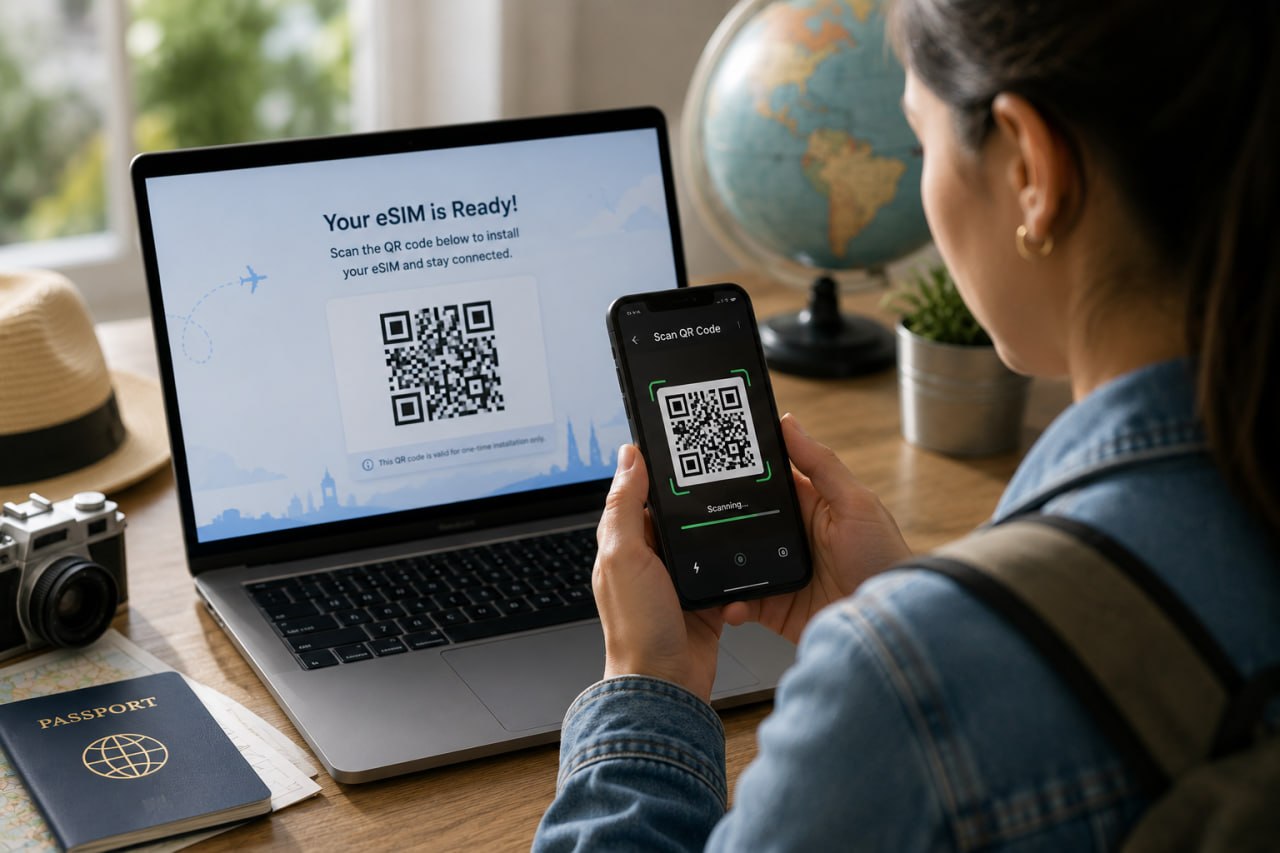
  1. You will need to send the QR code to another device near you (like your laptop, tablet, or friends phone)
  2. Scan QR code from device where you want to use your eSIM
  3. You will get the Activate eSIM screen. Click Continue
  4. Follow process on device
  5. Once you activate your eSIM, the usage period will start from that moment

Your eSIM will take 1–2 minutes to activate. Please ensure your screen does not go dark during this process.

Configuring iOS Default Settings

  1. When you see Cellular Setup Complete, click Continue
  2. For Default Line, select Primary and click Continue
  3. For iMessage & FaceTime, select Primary and click Continue (this is critical)
  4. For Cellular/Mobile Data, select Primary and turn ON Allow Data Switching, then click Continue

Please note: The label assigned to your new eSIM by iOS will likely be labeled Personal, Travel, Secondary, Business, or Cellular Data. You'll need this label in the next step.

Step 2: eSIM Settings

Configure Data Roaming

  1. Go to iPhone Settings β†’ Cellular/Mobile and scroll to the SIMs section
  2. Tap on the Roam eSIM (usually labeled Personal, Secondary, Travel, Business, or Cellular Data)
  3. Turn Data Roaming ON for Roam eSIM
  4. Go back and tap on your Primary SIM (the one with your regular phone number)
  5. Turn Data Roaming OFF for your Primary SIM

Configure Cellular/Mobile Data

If you want Roam to automatically take over when abroad:

  • Select Primary
  • Turn ON Allow Data Switching

If you prefer manual control:

  • Select Roam eSIM when abroad
  • Select Primary SIM when back home

(Recommended) Enable Low Data Mode

  1. Go to iPhone Settings β†’ Cellular/Mobile
  2. Tap on Roam eSIM
  3. Tap on Data Mode
  4. Select Low Data Mode

This avoids background data use without affecting speed when you actively use your phone.

Final Note

Validity & Reminders

Roaming Charges Prevention

  • As long as Data Roaming is OFF for your Primary SIM, you will not be charged for data roaming
  • Your mobile operator might still charge for calls or SMS
  • Receiving SMS is always free β€” even abroad
  • To completely avoid roaming charges, you can turn OFF your Primary SIM while traveling. Just note: you won't be able to receive SMS with it off

Usage Validity

  • Usage Validity is to confirm SIM usage period
  • eSIM QR code validity once purchased, eSIM is valid 28 days from the date of purchase and it must be activated within 28 days
Don't forget to activate within 28 days of purchase
Setup Progress 0/5

Complete steps 1-2 to finish setup

Support

eSIM Setup FAQs

Find answers to common questions about eSIM setup and usage

An eSIM (embedded SIM) is a digital SIM that allows you to activate a cellular plan from your carrier without having to use a physical nano-SIM. Your eSIM profile is downloaded to your compatible device via a QR code or activation code.

Compatible with: iPhone XR/XS and newer (iOS 12.1+), iPad Pro (3rd gen+), Google Pixel 3+ (Android 10+), Samsung Galaxy S20+ and newer, and other Android devices with eSIM support.

Yes! Most modern smartphones support Dual SIM Dual Standby (DSDS), allowing you to use both simultaneously. You can set one line for calls/SMS and the other for data.

Your Mapians eSIM must be activated within 28 days of purchase. Once activated, the validity period depends on your chosen plan (7, 15, or 30 days).

Still need help? We're here for you 24/7